Use the API Playground
Run a pipeline from the browser and watch the exact API request and JSON response — pick a pipeline and version, add a file, choose a mode, and read the result without writing any code.
The Playground submits a real job to the API and shows you the request it sent and the JSON it got back. It is the quickest way to see what your own integration will send, and to confirm a pipeline behaves over the API before you write any code.
Developers exploring the API. A Playground run is a real submission, so it consumes credits and its result is retrievable like any other job. It is listed on the Jobs page under the Test tab.
Prefer to see it first? This walkthrough runs a pipeline in the Playground and reads the request and response, end to end.
A click-through of the API Playground — picking a pipeline and version, adding a file, running it, and reading the request and JSON response. It runs in your browser and loads nothing until you press play.
1. Open the Playground
Open API Playground from the navigation and stay on the Pipeline tab. A second tab, REST Console, is coming soon.
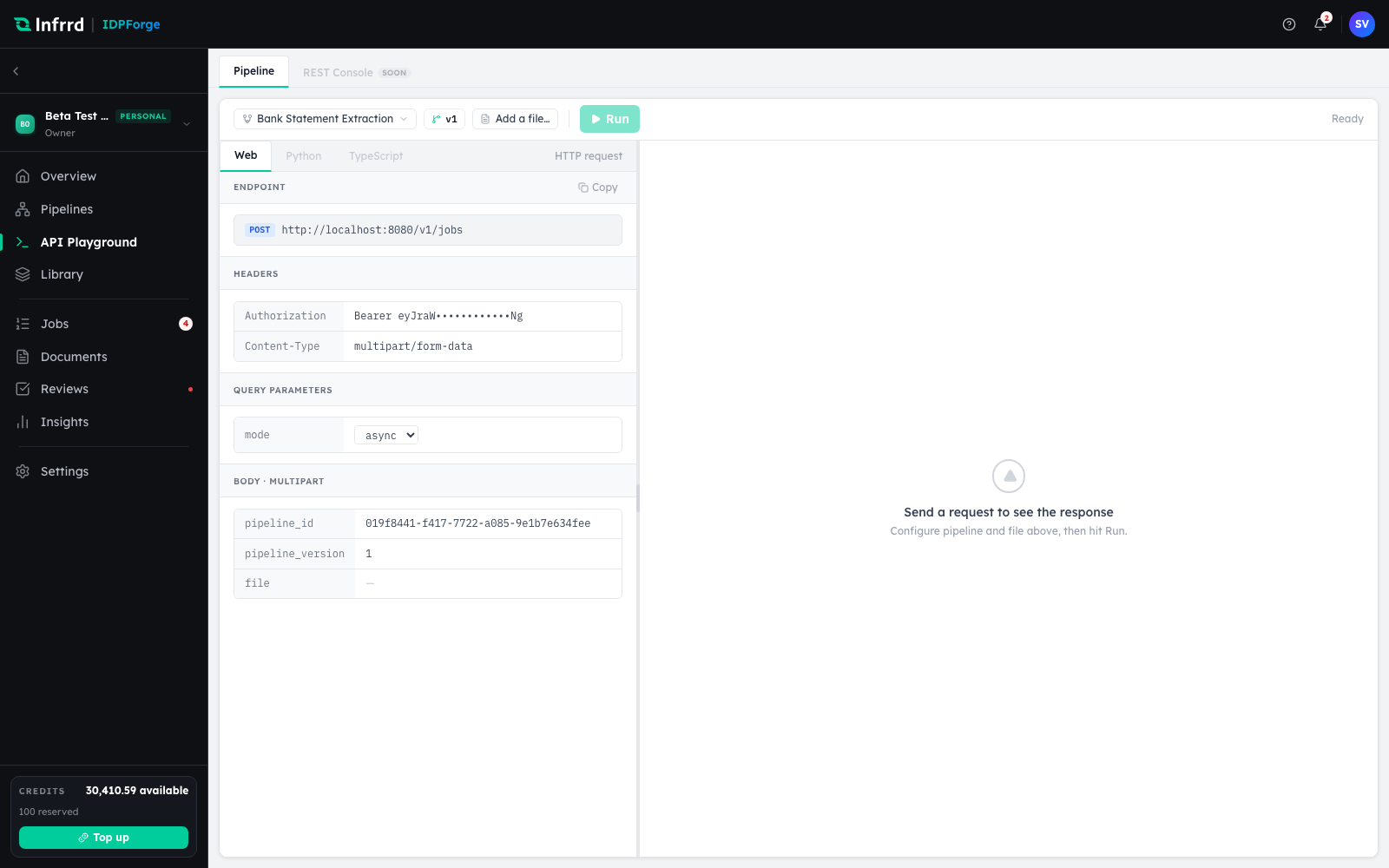
The Playground. Controls run across the top; the request IDPForge will send is built on the left, and the response lands on the right after you run.
2. Pick a pipeline and version
Choose a pipeline from the searchable picker, then the version to run. The version defaults to the one you last ran for that pipeline, otherwise the live published version, otherwise the latest draft. The request panel updates as you choose — the pipeline_id and pipeline_version in the body are the ones you just selected.
3. Add a file and choose a mode
Add one or more files — PDF, JPEG, PNG, TIFF, BMP, GIF, WebP, HEIC, or DOCX, narrowed to the types the pipeline accepts when it restricts them. Pick a mode: async (the default), sync, or auto. The mode shows up as the mode query parameter in the request.
4. Read the request
The left panel is the request in full — the POST to the jobs endpoint, the headers (a masked x-api-key and the multipart content type), the mode query parameter, and the multipart body carrying pipeline_id, pipeline_version, and files. This is the shape your own code sends; the full contract is in Submit a job.
5. Run and read the response
Choose Run. The stage progress strip advances and the response panel fills with the JSON result, which you can copy or download. The Playground follows the job to completion, so you see the finished result whichever mode you picked.
Move to code
Reproduce the run in your own stack from the request shown here — copy the endpoint, headers, and body into the Quickstart or Submit a job. Ready-made Python and TypeScript snippets, and the standalone REST Console, are coming to the Playground.