Monitor jobs
Find and follow your submissions on the Jobs screen — read a job's status, filter the list to the runs you care about, and open a job to see its documents and outcome.
Every submission to a pipeline — from the app, the API, the API Playground, or a connector — becomes a job. The Jobs screen is where you watch those jobs move from submitted to finished, see how each one turned out, and open the ones that need a closer look.
Anyone tracking what the platform is processing — operators watching a queue and developers confirming an integration's submissions landed.
Prefer to see it first? This walkthrough tours the Jobs screen and the details behind a single job.
A click-through of the Jobs screen — reading the list, opening a job, and following it through to its documents and outcome. It runs in your browser and loads nothing until you press play.
1. Open Jobs
Open Jobs from the navigation. The list shows submissions newest-first, one row per job, with its job ID, pipeline and version, submitter, source, current stage, document counts, credits, and status. Production and Test tabs split real submissions from test runs made in a pipeline's Test tab or the API Playground.
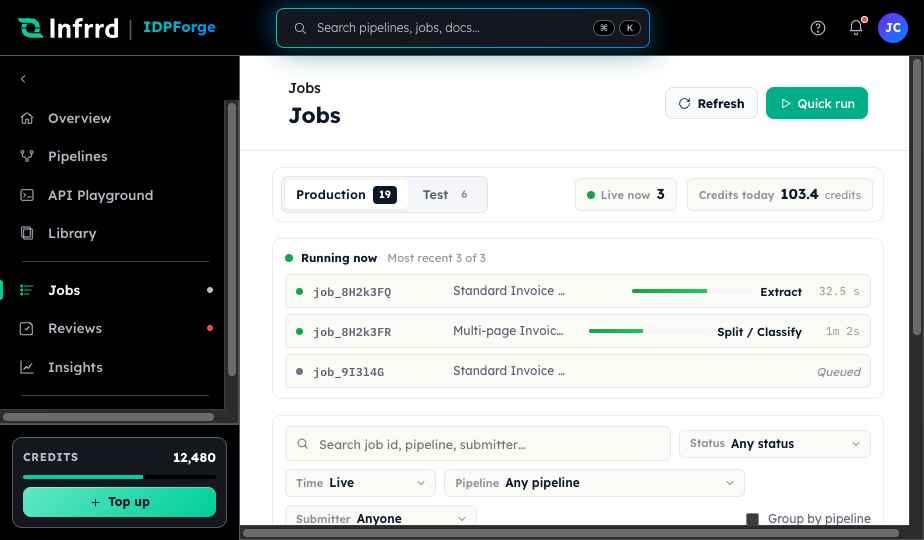
The Jobs screen. A Production / Test split sits above the list; the row that is still running shows the stage it is on, and the filter bar below narrows the list by status, time, pipeline, or submitter.
2. Read a job's status
A job carries one status as it runs:
- Queued — accepted and waiting for a worker.
- Running — moving through the pipeline's stages.
- Auto-retrying — a stage hit a transient error and is being retried.
- Needs review — one or more documents raised an exception and are waiting in Reviews.
- Succeeded — finished cleanly, with data ready to read or deliver.
- Blocked / Partial — held by a stage error rather than failed: Blocked holds the whole job, Partial holds part of it. Both can be fixed and re-run.
- Failed — the run stopped before finishing.
- Cancelled — the run was stopped before it finished.
Processing is asynchronous, so a freshly submitted job shows as queued or running and updates in place as it progresses — you do not need to resubmit to refresh it.
3. Filter and find a job
Narrow the list with the filter bar: Status (including Held by a stage error), Time (from Live to All time), Pipeline, and Submitter. The search box matches a job ID, a pipeline name, or a submitter's name. Tick Group by pipeline to collect the rows under each pipeline.
4. Open a job
Select a row to open the job. A job can contain more than one document — a multi-page upload is split into the documents it actually holds. The Result tab summarises the outcome: how many documents the job produced, fields extracted, average confidence, flagged fields, and documents needing review, with a breakdown by document type. Trace, Source, Request, and Audit log tabs show how the job ran. To read a document's extracted data, see Review extracted documents.
5. Act on the outcome
What to do next follows the status:
- Succeeded — read the documents, or let the pipeline's destination deliver them.
- Needs review — work the exceptions in Reviews; see Correct a document in review.
- Failed / Blocked — check the reason on the job, fix the cause, and run it again.
To follow jobs without watching this screen, subscribe to stage events with a webhook — see Subscribe to job events.
A job, its result, and its documents are retained for 24 hours after submission, then deleted. Read or deliver what you need within that window.