Add your own LLM key
Add a provider key to a BYOK pool, test it, scope the pool to your pipelines, and keep keys rotated — so inference runs on your account.
Adding your own LLM key routes IDPForge's model calls to that provider through your account. Keys live in provider pools on the BYOK (LLM) tab of Settings → Integrations.
Workspace Owners and Workspace Admins. Adding and rotating provider keys is an admin action.
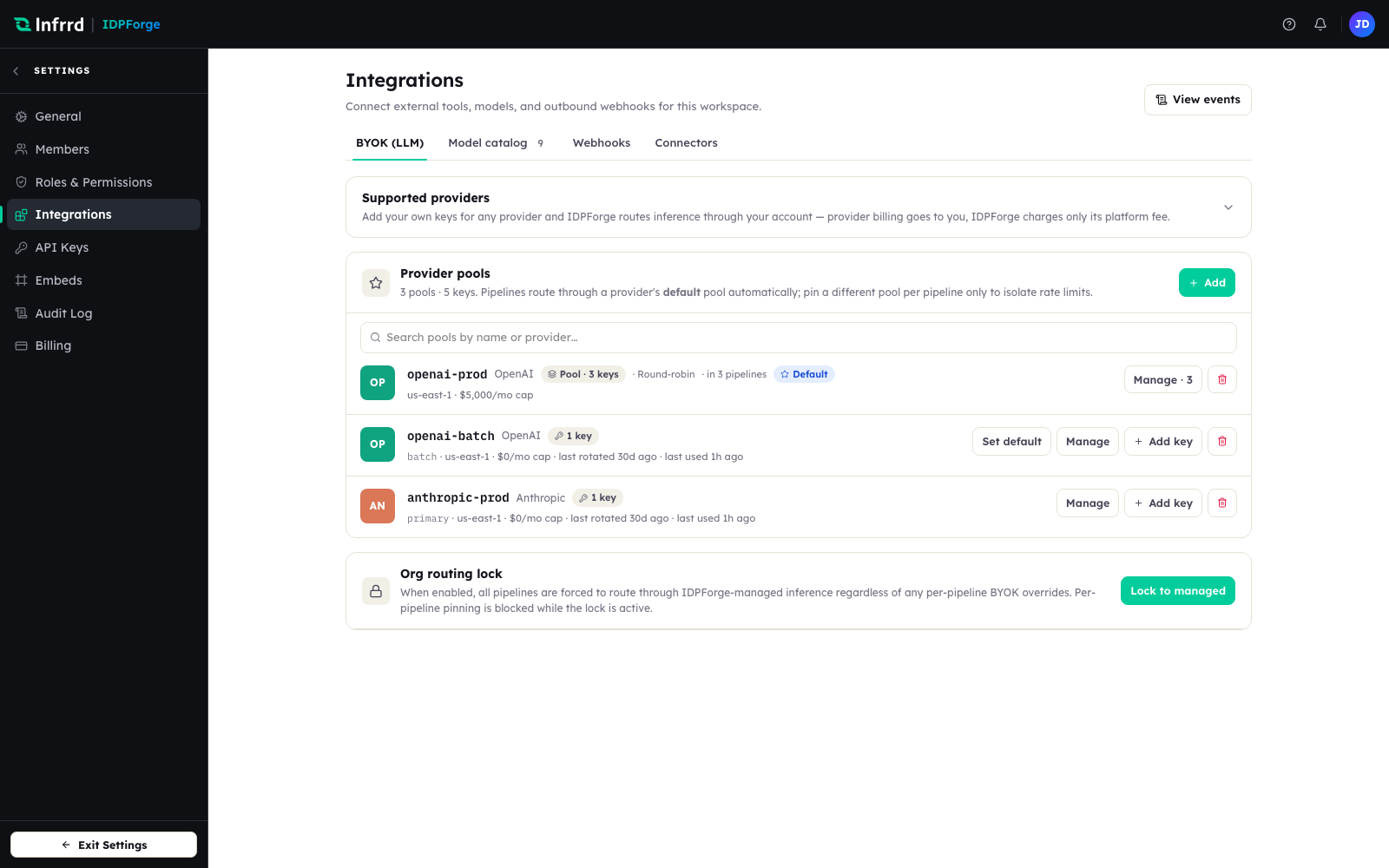
The BYOK tab under Settings → Integrations. Each row is one provider pool; add a key to a single-key pool with Add key, or start with Add to add a key to any pool or create a new one.
1. Open the BYOK tab
Go to Settings → Integrations and open the BYOK (LLM) tab. Existing provider pools are listed with their key count, region, and monthly cap.
2. Add a key to a pool
Choose Add to open Add LLM key, or Add key on a single-key pool's row. Pick the Provider and the Pool — or name a new pool and choose its load-balancing strategy — then fill in the fields that provider needs, such as region, resource endpoint, or GCP project. Add an optional Key alias you will recognise and paste the credential.
3. Test the connection and save
Choose Test connection before you save, to confirm the key reaches the provider. If the last test failed, Save key stays blocked until you re-test; a few providers report that a live test is not available. Choose Save key when the test passes. The secret is stored encrypted; afterward only its alias and status are shown.
4. Set the pool's strategy, cap, and scope
Open the pool with Manage. Choose a Load-balancing strategy (Round-robin or Least-used), a Monthly spend cap or Unlimited, and the pool's Scope — all pipelines, no pipelines, or specific pipelines — then choose Save changes. The cap is shown on the pool row as a budgeting reference; IDPForge does not stop calls when it is reached, so keep hard spend limits in your provider account.
5. Choose how pipelines use the pool
Pipelines route through a provider's default pool automatically. Set a pool as default with Set default, or pin a specific pool on a pipeline only when you need to isolate its rate limits.
6. Rotate and retire keys
In Manage, each key's actions offer Rotate key (paste the new secret), Disable key to take it out of rotation while keeping it, and Remove key to retire it. The key table shows when each key was last rotated and last used. A pool's last key cannot be removed — revoke the pool instead.
Edge cases
- A configured provider with no usable key fails the job. If a pipeline is set to use your key for a provider but every key is disabled or cannot be resolved, the job fails closed rather than falling back to managed inference — see Bring your own key.
- Keys are not separated by environment. Keys are stored per provider pool, so one set of keys serves the whole workspace.
- The org routing lock overrides pools. While the lock is on, every pipeline runs on IDPForge-managed inference regardless of pool configuration.