Test a document in a pipeline
Upload a document to a pipeline's Test tab, run it against a draft or published version, and review the extracted data field by field — with confidence and on-page coordinates — before you deploy or deliver.
The Test tab runs a real document through a pipeline and shows you every stage's output, so you can check a change before you publish it or wire it to a destination.
Pipeline builders. You can test any version you can open, including an unpublished draft.
1. Open the Test tab
Open a pipeline and switch to Test. A single row across the top holds the version selector, the Upload document control, the Run button, and the per-stage progress strip.
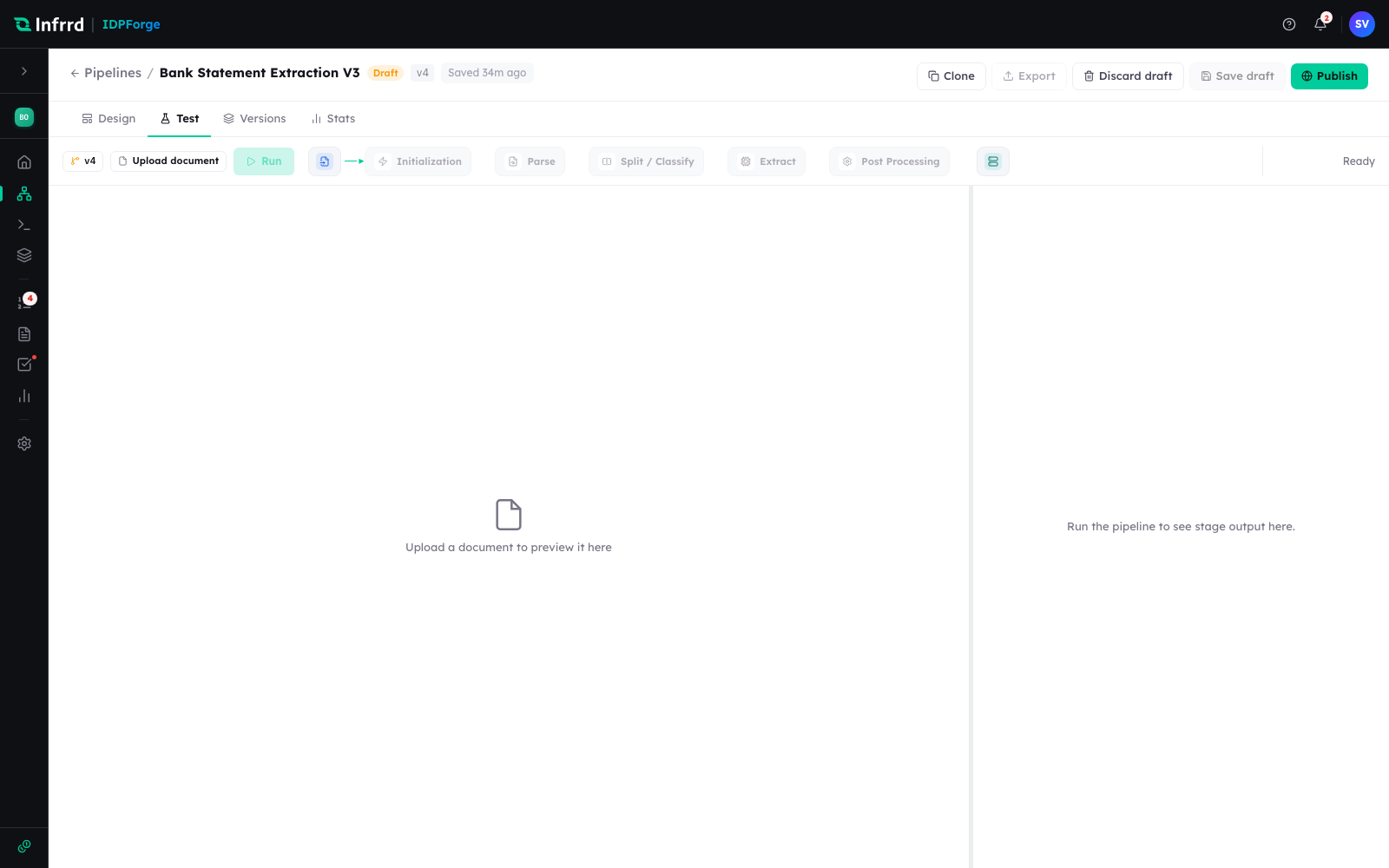
The Test tab before a run. The stage strip to the right of Run shows the pipeline's stages in order; the two panels fill in once a document is uploaded and run.
2. Choose a version
Pick the version to test from the selector, where the live version is marked LIVE and an unpublished one DRAFT. A draft lets you check unpublished edits; a published version reproduces exactly what production is running. The run is stamped to the version you pick, so you can compare a draft against the live version deliberately.
3. Upload your documents
Upload one document, or a batch — PDF, image, or Office files, up to 20 MB each. The left panel previews the document you are looking at; when you upload several, a switcher lets you move between them and each is processed independently.
4. Run
Choose Run. The stage strip advances as each stage completes — Initialization, Parse, Split / Classify, Extract, Post Processing — and the run ends in one of a few outcomes: Run Complete, Needs Review, Awaiting Review, Run Failed, or Blocked. Abort stops a run at the next stage boundary. The outcome tells you whether the pipeline would have shipped this document as-is.
5. Review the extracted data
The result is a split view: the document on the left with a bounding-box overlay marking where each value was read, and the extracted fields on the right, each with its confidence. The Extract output is grouped into Fields, Tables, Figures, and Selections, with a Raw JSON view, and each stage in the strip opens its own output — so you can see what Parse read, what Classify decided, and what Extract produced, and tell which stage to fix when a value is wrong.
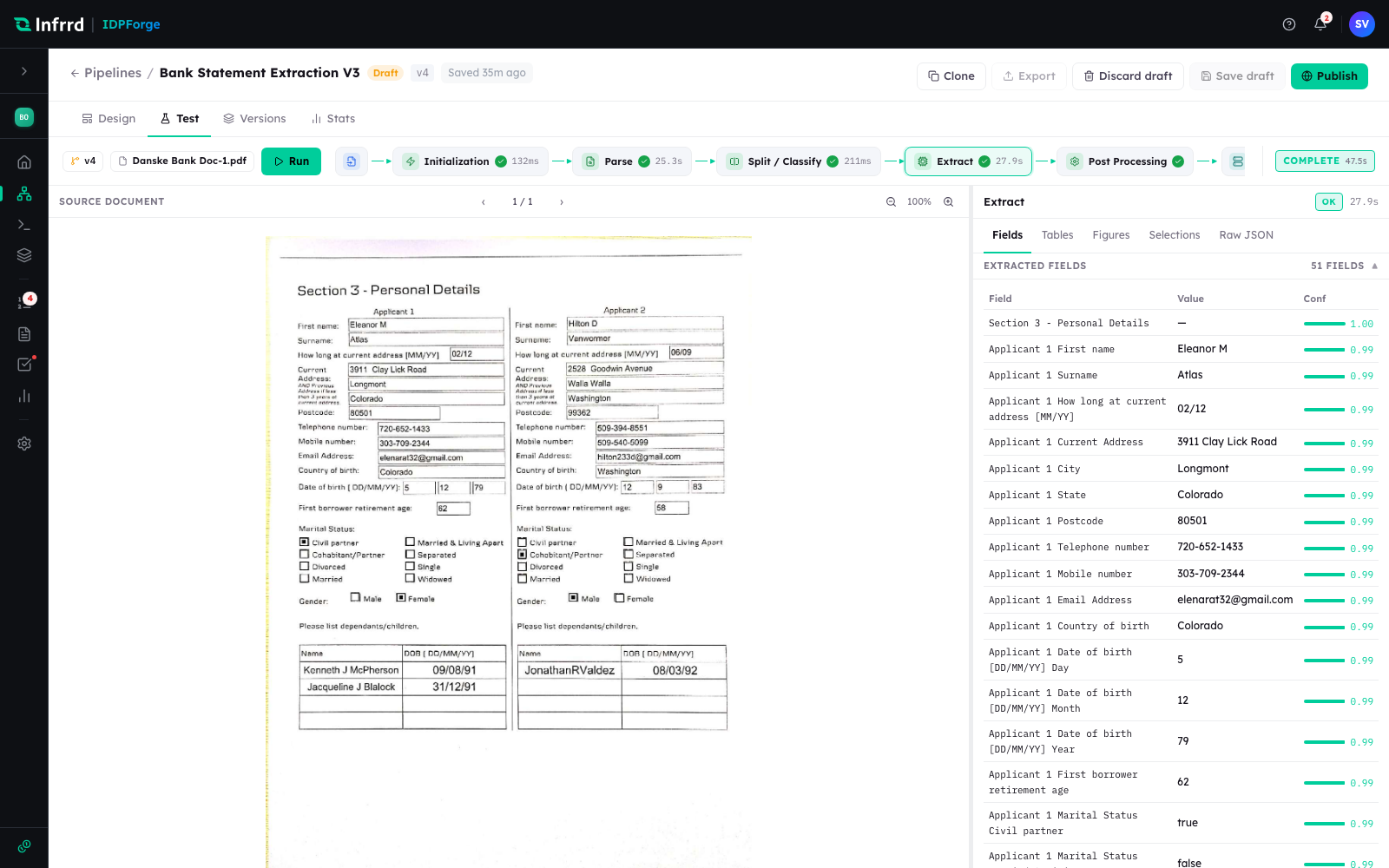
A completed run. The document and its field overlays sit on the left; the extracted fields, each with a confidence score, on the right. The overlay is the fastest way to confirm a value was read from the right place on the page.
6. Verify or correct
If the run needs review, the document carries the same exceptions it would in production, and the review happens in the Reviews workspace rather than here — see Correct a document in review for the claim-correct- submit loop. Use the Test tab to find the problem; use Reviews to work it.
Test runs are real jobs
A test run is not a dry run. It is listed on the Jobs page under the Test tab rather than Production, and it consumes credits exactly as a production job does. It runs the version you picked with that version's full configuration, so check the Destination stage before you test a version that writes to a Google Drive folder — see Deliver to a destination.