Deliver to a destination
Connect Google Drive, pick a pipeline's output folder on its Destination stage, and confirm delivery — while every result stays available over the Web Response API.
A pipeline always returns its result over the Web Response API. Connecting Google Drive adds a second delivery: the finished output is written to a Drive folder when the job completes. This guide connects Drive and binds it to a pipeline.
Workspace admins and pipeline builders. You need a Google account with access to the Drive folders you want to use.
1. Connect Google Drive
Go to Settings → Integrations → Connectors and choose Add connector. The wizard runs in three steps — Name, Connect, Done.
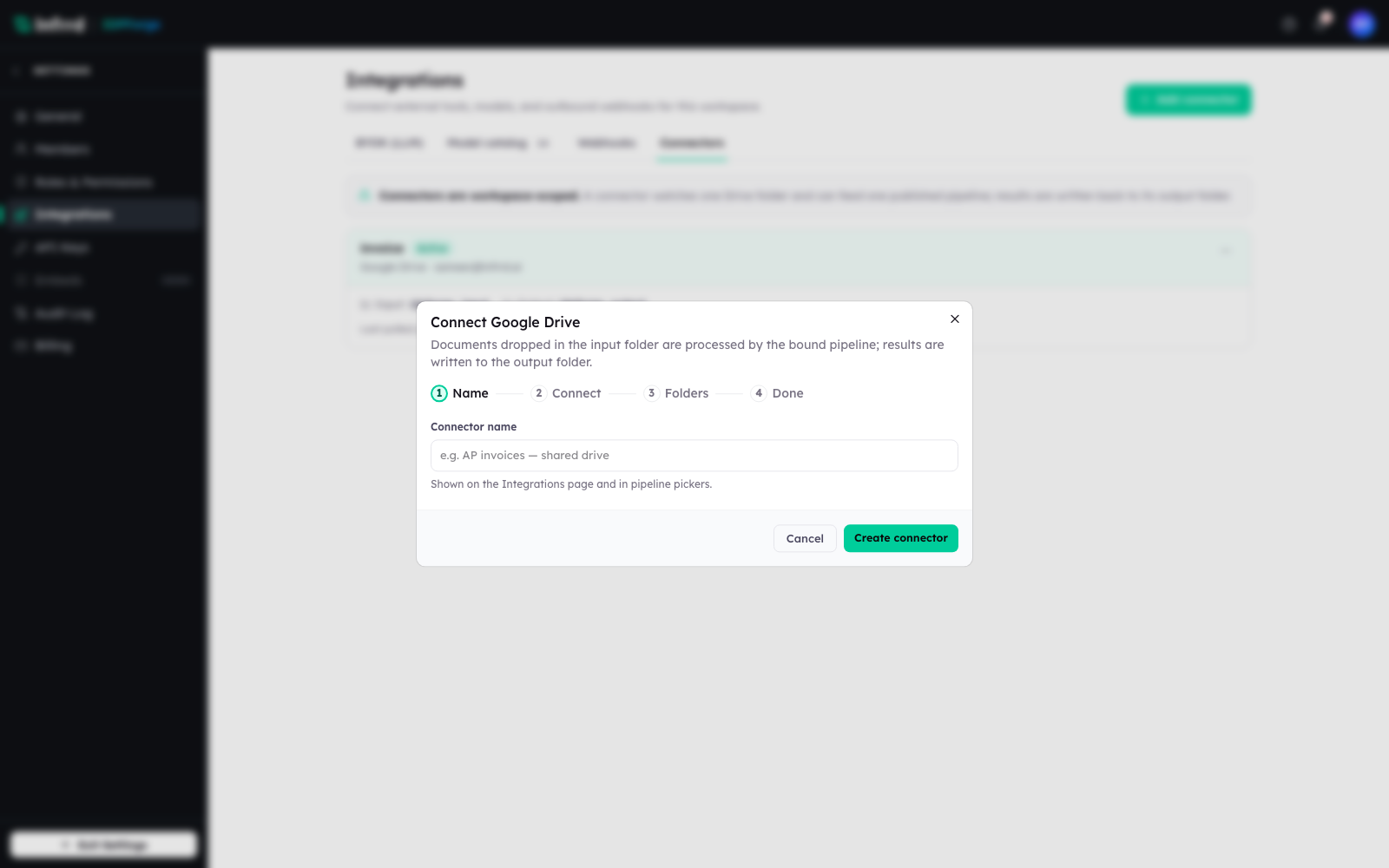
Step one of the Connect Google Drive wizard. The name is shown on the Integrations page and in the pipeline pickers, so make it recognisable.
At Connect, sign in with the Google account that owns the Drive folders and grant access. Done confirms the account is connected; the connector appears on the Connectors tab, ready to bind to a pipeline. The connector holds no folders of its own — each pipeline picks its input folder on its Source stage and its output folder on its Destination stage.
2. Bind the connector to your pipeline
Open the pipeline in Design and select the Destination stage. Under Deliver to Google Drive, pick the connector from the list, then choose the Output folder results should land in. Results for this pipeline are now written to that folder at job completion.
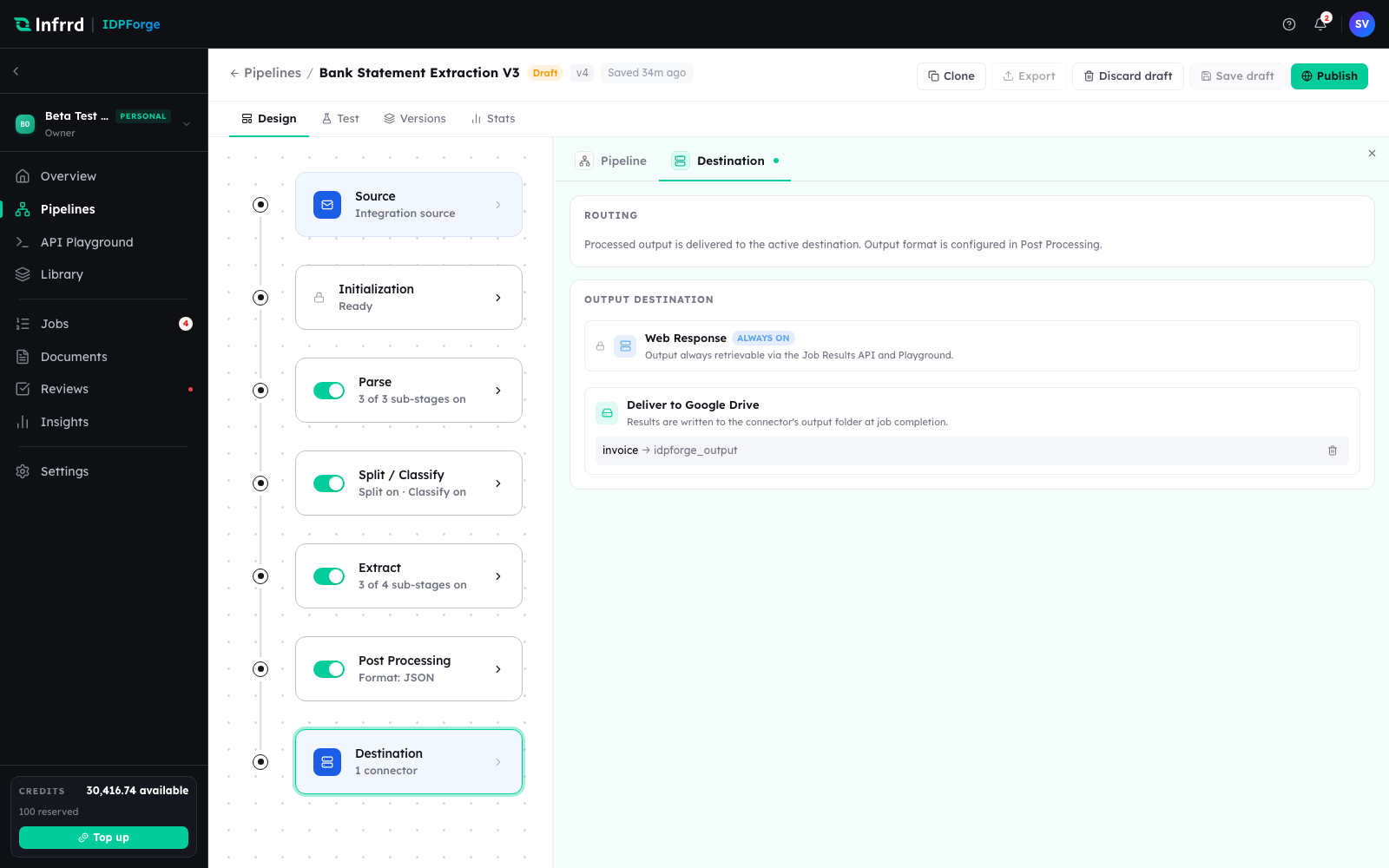
The Destination inspector. Web Response is always on; the Google Drive target is what you add here. Routing lives on this stage — the output format does not.
A pipeline delivers to one Google Drive target at a time; picking another connector replaces the current one, and None (web response only) removes it.
3. Keep the Web Response
Leave Web Response on. It cannot be turned off, and that is deliberate: even with Drive delivery configured, every result stays retrievable over the Job Results API and in the API Playground, so an integration is never blocked waiting on a folder sync.
4. Set the output format
The Destination stage routes the result; it does not shape it. Set the output format on the Post Processing stage inspector — JSON or CSV — which is where a pipeline decides the shape of the result it returns.
5. Confirm the delivery
Submit a document to the pipeline and check the output folder once the job completes. A completed job writes <file name>__<job id prefix>.result.json, with a best-effort .xlsx rendering alongside it. The JSON file is the contract; the spreadsheet is a convenience copy.
Retries and duplicates
A Drive write that fails transiently is retried on a widening schedule — after 1 minute, 5 minutes, 30 minutes, 2 hours and 6 hours — and marked failed after the fifth attempt. Progress is tracked per file, so a retry does not rewrite a file that already landed. If you need the result elsewhere the moment it is ready — rather than after the folder write — subscribe to it with a webhook instead of watching the folder.