Review extracted documents
Open a document from a finished job and read what the pipeline extracted — fields, tables, figures, and selections, each with confidence — and check a value against where it was read on the page.
A job produces documents — one file may split into several — and each document carries the data the pipeline read from it. The Documents view is where you open a single document and read that data: the fields it found, how confident it is in each, and where on the page each value came from.
Anyone confirming a result — an operator spot-checking output or a developer verifying what a pipeline returns before wiring it to a destination. Reading a document does not change it.
Prefer to see it first? This walkthrough opens a document and reads its fields, confidence, and page highlights.
A click-through of a document's extracted data — reading fields and confidence, checking a value against the page, and moving through tables and selections. It runs in your browser and loads nothing until you press play.
1. Open a document
Open a document from its job on the Jobs screen, or from the Documents list. The view is a split layout: the document itself on one side, the data extracted from it on the other.
2. Read the fields and confidence
The extracted values sit alongside the document, each field paired with a confidence score. Confidence is the pipeline's own read of how sure it is — a low score is the signal to check the value, not proof it is wrong. See Extract for what the stage produces and how confidence is assigned.
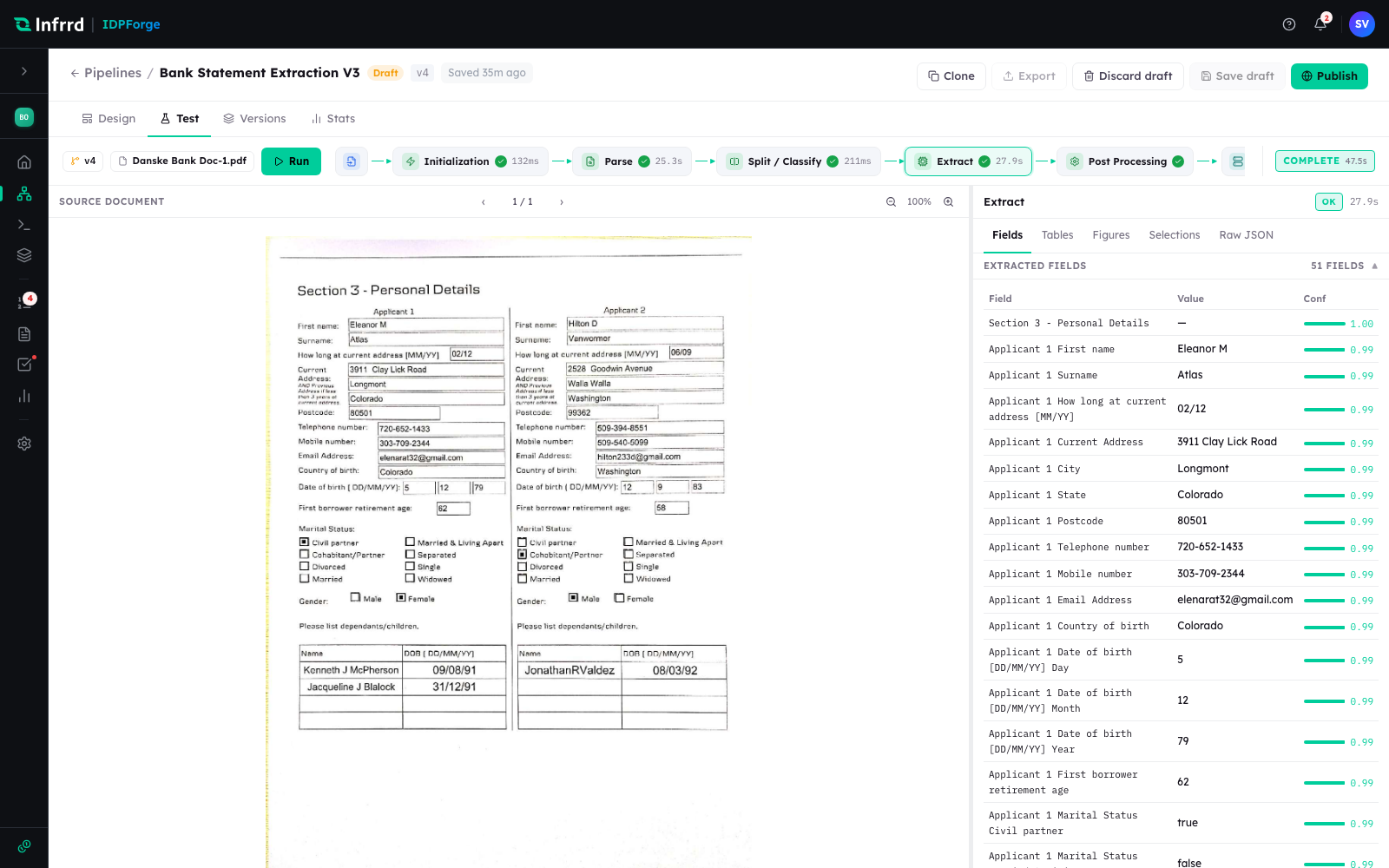
The same results view on a pipeline's Test tab: the source document on the left, the extracted fields on the right with their confidence, under Fields, Tables, Figures, Selections, and Raw JSON tabs.
3. Check a value against the page
Hovering a field, table, or figure highlights where it was read on the document — a bounding box on the page. This is the fastest way to confirm a value came from the right place, rather than a plausible-looking value from the wrong part of the page.
4. Tables, figures, and selections
Beyond plain fields, a document's data is grouped by kind — Fields, Tables, Figures, and Selections — with Raw JSON for the underlying structured output. Tables keep their rows and columns; selections capture checkboxes and choices. Read each group in its own tab.
5. Send low-confidence documents to review
When the pipeline's Split / Classify or Extract stage has Send exceptions to Reviews turned on, a document with a low-confidence value or a failed cross-field rule is held for review and worked in Reviews — claim it, correct the value, and submit. A document whose extraction returned nothing at all goes to review whether or not the toggle is on. The Correct a document in review how-to covers that loop; Exceptions & human review explains when a document is routed there in the first place.
To pull the same extracted data programmatically instead of reading it here, retrieve the job over the API — see the job-status endpoint in Submit a job.
A job's documents and their extracted data are retained for 24 hours after submission, then deleted. Read or deliver what you need within that window; a document that has aged out is no longer available here or over the API.